

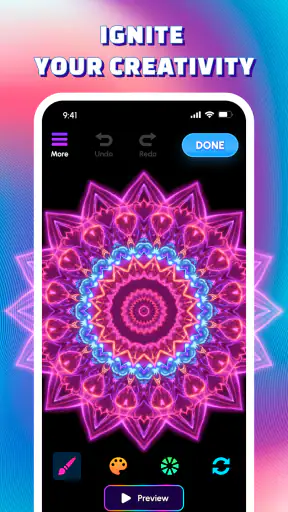
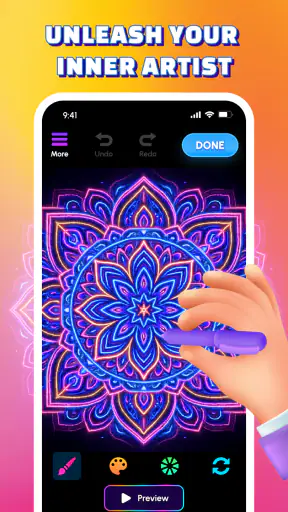
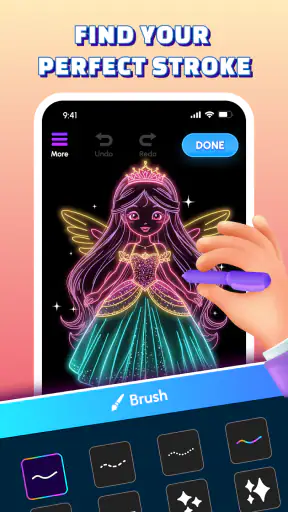
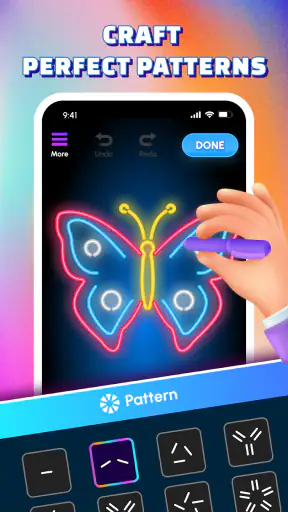
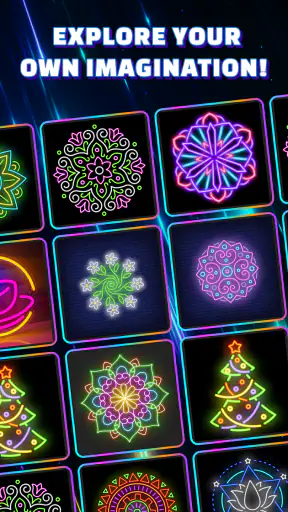
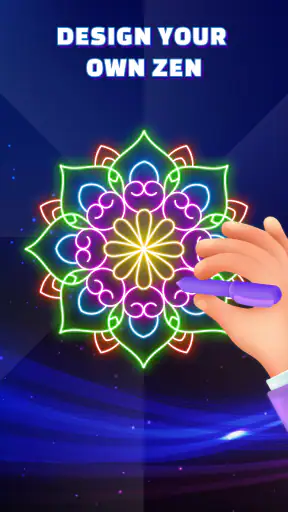
Glow Art Drawing - Doodle App is the kind of creative tool I reach for when I want to draw without setting up a serious illustration project. It turns the screen into a bright sketch surface, making quick doodles feel more playful than ordinary pencil-and-paper apps. I tested it as an everyday drawing app rather than treating it like a professional studio, and that distinction matters: its appeal is immediate visual fun, not a full replacement for a layered design workspace.
What encouraged me to try it was the combination of a free download, an Everyone content rating, and a simple focus on glow-style drawing. The app is made by Braly JSC and sits in the Art & Design category. Its average rating is 4.2 from around 2.5 thousand ratings, while its reach has passed 5 million installs. Those figures suggest that the concept is easy for a broad audience to understand, although popularity alone is not a substitute for checking whether its controls fit your own drawing habits.
I also paid attention to trust in the practical sense. When I use an app aimed at children, casual creators, or family devices, I want the choices on screen to be understandable. I do not want to assume anything about permissions or data handling that is not visibly explained. My view of this app is therefore based on the controls and choices a user can actually see, rather than on guesses about what happens behind the scenes.
How the drawing experience feels in ordinary use
The strongest part of the experience is the low barrier between opening the app and making a mark. Glow effects give even a rough line a more finished appearance, so I do not need much drawing skill to create something that looks lively. That makes it particularly suitable for short sessions: decorating a note, sketching a simple character, experimenting with lettering, or keeping a child occupied with a creative activity.
I found the visual style more motivating than a plain white canvas. A normal doodle can feel unfinished when the line quality is uneven, but a glowing stroke turns that imperfection into part of the look. This is a useful design choice for beginners because it rewards experimentation quickly. If your goal is to produce polished vector artwork, however, the same effect may feel restrictive rather than helpful.
A realistic use case is a quiet evening when I want to make a birthday card idea without opening a complex editor. I can start with a dark background, try a few bright outlines, and decide whether a short message or a small illustration works better. The app is also a reasonable fit for a child who wants to draw stars, animals, or colorful patterns, provided an adult has already reviewed the visible choices and any device-level purchase or account settings.
Another useful workflow is to treat it as a warm-up tool. Before working in a more demanding drawing program, I can spend a few minutes making loose shapes and testing color combinations. The glow treatment makes it easier to judge contrast and rhythm, even when the drawing itself is deliberately simple. I would not use that workflow to prepare technically precise artwork, but it works well for generating visual ideas.
What the glow style does well
The effect is not merely decoration. It changes how I approach the blank canvas. I am more willing to draw quickly because the bright edge gives basic shapes a sense of intention. Circles, zigzags, icons, and handwritten words all become more expressive without requiring advanced tools.
It is especially effective for high-contrast designs. A bright line against a dark surface is easy to read, which helps when I am making a small image for personal use. The approach also suits party invitations, playful wallpapers, simple social posts, and informal sketches. These are situations in which atmosphere matters more than exact geometry.
There is a trade-off, though. A glow effect can hide subtle differences between strokes, and it is not ideal when I need delicate shading, realistic texture, or natural pencil response. Someone looking for watercolor blending, oil-paint behavior, or detailed photo editing should choose a broader art application instead. This app has a clear personality, and it works best when I accept that personality rather than trying to force it into another role.
Controls, confidence, and visible choices
For me, a trustworthy creative app is not only one that produces attractive images. It should also make the important choices understandable. Before beginning a long project, I would look carefully at any prompts involving saving, sharing, accounts, or access to device content. I prefer to make those decisions deliberately instead of tapping through them automatically, especially when a younger user may be holding the phone.
The same rule applies to notifications and promotional screens. A free app can still be useful, but free does not mean I should ignore what appears on the screen. I recommend pausing at each request and asking whether it is necessary for the drawing task. If a permission or account request is not relevant to what I want to do, I would leave it disabled until the app clearly explains why it is needed.
This is also where the app’s simple purpose helps. Since I am using it for doodling rather than managing a professional portfolio, I can keep my workflow narrow: open the canvas, create the image, save or share only when I choose, and close the app. That limited routine reduces the number of moments in which I need to make privacy or account decisions.
Data-sensitive moments to handle carefully
Drawing apps often become more personal than they first appear. A sketch may contain a child’s name, a family message, a private idea, or an image based on something in the home. I would therefore avoid importing or sharing anything sensitive unless I have checked the destination and the visible confirmation screen. A glowing doodle feels harmless, but the content itself can still reveal personal information.
I would also be cautious when using the app on a shared tablet. Before handing the device to someone else, I would review the current canvas and any recently opened material, then use the device’s own account and privacy controls where appropriate. This is not a criticism of the drawing tools; it is simply good practice whenever creative work is made on a device used by several people.
For parents, the Everyone rating is reassuring as a general content label, but I would still supervise the first session. Age labels describe content suitability, not every interaction a user might encounter around saving, sharing, advertising, or account management. My recommendation is to explore the app together, explain which buttons are for creating and which are for leaving the canvas, and let the child know that they should ask before sharing an image.
For adults, the same principle applies in a different way. If I am creating a design for work or a private project, I would keep a separate copy in a location I control rather than relying on a single in-app workflow. I would also avoid assuming that an image is private simply because I have not shared it yet. Checking the visible save and share choices is a small step that prevents careless mistakes.
Where it fits beside familiar alternatives
Compared with a basic notes app, Glow Art Drawing - Doodle App is more inviting for visual play. A notes canvas may be faster for a rough reminder, but it usually does not give the same immediate glow-focused look. Compared with a professional illustration suite, this app is much easier to approach, but it does not belong in the same class for detailed editing, precision, or complex project management.
That middle position is important. I would choose it over a plain sketch pad when the final image needs a bright, playful mood. I would choose a more advanced art program when I need layers, exact selection, sophisticated brush control, or a workflow that can grow with a serious project. I would choose a note-taking app when the drawing is only a quick visual reminder and appearance does not matter.
The best comparison is therefore not “which app has the most tools?” It is “how much friction do I want before making a fun image?” This app wins when speed and style are more valuable than depth. It loses when I need a flexible system that lets me revise every part of an illustration independently.
Practical advice before committing to a longer project
I would begin with a small test drawing instead of spending an hour on a large idea. Try a few lines, a filled shape, and some handwriting. That quickly shows whether the glow treatment is comfortable on your screen and whether the controls feel natural with your finger or stylus. It also gives you a chance to inspect the saving and sharing path before the artwork matters.
For cleaner results, I would sketch the composition mentally before touching the canvas. Glow effects emphasize edges, so crowded drawings can become visually noisy. Leaving more space between letters and shapes usually produces a clearer result than trying to fit too much into one image. This is one of the less obvious adjustments that makes a bigger difference than simply adding more colors.
I would also use the app for projects that benefit from a consistent visual language. A set of simple icons, a series of themed doodles, or several greeting-card concepts can look more coherent when every mark shares the same luminous treatment. By contrast, mixing realistic objects with detailed textures may expose the limits of the style and make the result feel less natural.
Because the app is free, it is easy to install for a quick experiment without making a financial commitment. Still, I would not confuse free access with unlimited suitability. The real cost may be time spent adapting a project to a tool that lacks the controls you eventually need. Testing a small sample first is the sensible way to decide whether the visual effect is worth building around.
Version, compatibility, and everyday reliability
The current version is 1.0.22, and the app supports devices running Android 7.0 or later. That gives it a broad compatibility range for Android users, including many older devices that cannot run the newest software. On an older phone, I would keep expectations realistic when working with large or highly detailed drawings, because screen size and general device performance can affect comfort even when the operating system is supported.
The release date is May 29, 2026, so I would pay attention to how the app develops over time. A relatively new product can be appealing because its central idea feels focused, but it may also change as the developer responds to user feedback. I would keep important artwork backed up outside the app and read update notes when they are available, particularly before starting a project that I cannot easily recreate.
That recommendation is not meant to make the app sound unreliable. It is simply the habit I use with any lightweight creative tool. A drawing app becomes part of my workflow only after it proves that the basic cycle—create, keep, and revisit—works comfortably for me. A short trial is more informative than relying on the install count or rating alone.
Who will enjoy it, and who should skip it
I think it is a good match for beginners, casual doodlers, families looking for a simple creative activity, and anyone who likes neon-inspired visuals. It is also useful for quick concept sketches where emotional energy matters more than technical accuracy. If you often say that drawing apps feel intimidating, the immediate glow effect may make this one easier to enjoy.
I would be more cautious about recommending it to professional illustrators, students practicing realistic media, or designers who need editable components and precise output control. The focused style is an advantage for casual work, but it becomes a limitation when the project requires subtlety. People who dislike bright visual effects may also find the central idea too narrow, even if the basic drawing experience is otherwise comfortable.
It is not the right choice if your main requirement is a complete digital art studio. In that situation, a dedicated illustration application with a deeper toolset will save time in the long run. It is also not ideal if you want a private journal with extensive writing features; a secure notes or journaling app would be a better fit for that purpose.
My cautious verdict
After using it as a quick creative outlet, I see Glow Art Drawing - Doodle App as a focused and approachable Art & Design app rather than an all-purpose drawing solution. Its bright stroke treatment makes simple ideas feel rewarding, and the free format lowers the risk of trying it. The strongest reason to install it is not the size of its audience, but the way it turns a blank screen into an inviting place for short, expressive sessions.
I would recommend it to a friend who wants playful sketches, glowing lettering, or an easy activity for a shared family device. I would advise that friend to review every visible permission, account, saving, and sharing choice instead of accepting prompts automatically. That approach respects user agency and keeps the app’s role clear: a tool for making images, with the user deciding what is stored, shown, or shared.
My final judgment is positive but deliberately limited. The app succeeds when its distinctive glow look is exactly what I want, and it falls short when I need professional control or a broader range of artistic media. With an Everyone rating, a free price, support for Android 7.0 and later, and a current version of 1.0.22, it is easy to test. I would start small, protect anything personal, and keep a more advanced alternative available for work that demands precision.
If you want fast, cheerful doodles and understand the trade-off between style and control, this is worth trying. If your priority is detailed illustration, layered editing, or a highly private creative archive, I would look elsewhere. That honest boundary is what makes the app easier to recommend: it knows what kind of drawing experience it wants to provide, and it is most enjoyable when you want exactly that.


